Almost every list of the best AI video editing software makes the same mistake. It ranks tools by feature count, quotes the sticker price, and stops. Then you subscribe, burn your monthly credits in a fortnight, discover the export is watermarked at 720p, and wonder what you actually bought.
This guide is built the other way round. Every price, credit allowance, watermark rule and export ceiling below was read off the vendor’s own pricing page or help documentation, and we say so plainly wherever a vendor would not publish a figure. We also do the arithmetic nobody else does: what a finished, usable second of video really costs once you count the generations you throw away.
One thing has changed the picture since last year. OpenAI discontinued the Sora web and app experiences on 26 April 2026, and the Sora API follows on 24 September 2026. Any shortlist still recommending Sora is out of date. The tools below are all live, and all still taking money, as of August 2026.
Ten tools that earn their place, with the free tier and the real entry price next to each one.
Best overall
Descript
Best for text-based editing
Free / $16 per mo
Runner-up
Runway
Best for generative shots and VFX
Free / $12 per mo billed annually
Third pick
Adobe Firefly
Best for commercially safe AI
Free / $9.99 per mo
01
Descript
Best for text-based editing
Descript turns your footage into a transcript you edit like a document. Delete a sentence and the video cuts with it. That one idea removes most of the tedium from talking-head work, podcasts and course videos. Its Underlord assistant clears filler words, awkward pauses and rough captions without you touching a timeline, and the paid tiers meter AI use in credits rather than minutes.
Free tier: 60 minutes of media a month, 720p exports with a watermark, 100 one-off AI credits
Free / $16 per mo
02
Runway
Best for generative shots and VFX
Runway is where you go when an edit needs footage that does not exist yet. Gen-4.5 covers image-to-video, video-to-video restyling, inpainting and background removal in one workspace, and the output holds up in paid work. It is a generator with editing tools attached rather than a full NLE, so most people pair it with something else for the actual assembly.
Free tier: 125 credits, granted once, not a monthly refill
Free / $12 per mo billed annually
03
Adobe Firefly
Best for commercially safe AI
Firefly is the only major option that states plainly what its models learnt from. Adobe says its commercial models were trained on licensed Adobe Stock, openly licensed and public domain content, and that it does not train on subscribers’ personal files. If your work passes a legal review, that provenance is worth more than a benchmark score. Standard gives you 2,000 generative credits a month.
Free tier: A limited free allowance; Adobe publishes credit figures only for its paid tiers
Free / $9.99 per mo
04
DaVinci Resolve
Best free professional editor
Resolve hands you a full edit, colour, audio and effects suite for nothing, and the free build exports Ultra HD without branding anything. The AI sits in the paid Studio build: Magic Mask, text-based editing, spatial noise reduction and the Neural Engine tools. Studio is a single $295 payment rather than a subscription, so across two years it undercuts almost everything else on this page.
Free tier: Yes, free forever, up to 3840×2160 at 60fps with no watermark
Free / $295 one-off for Studio
05
CapCut
Best for fast social edits
CapCut is still the fastest route from raw phone footage to a posted vertical video. Auto-captions, auto-reframe, background removal and an enormous template library cover most short-form work. The 2026 plan restructure moved several features behind the paid tiers, so confirm the specific feature you depend on is still where you left it.
Free tier: Generous free editor, but most AI features stamp a watermark
Free / from about $9.99 per mo
06
OpusClip
Best for turning long video into clips
Feed it a podcast or a webinar and it returns ranked vertical clips with captions and reframing already applied. The virality scoring is guesswork, but the reframing and cutting are a real time saver when you have three hours of footage and need ten shorts by Friday. The three-day expiry on free exports catches people out constantly.
Free tier: 60 credits a month, watermarked, and exports expire after three days
Free / $15 per mo
07
Kapwing
Best browser editor for teams
Kapwing runs entirely in a browser tab, which makes it easy to hand a rough cut to a colleague who has never opened an editor. Subtitling, dubbing and text-to-speech all draw on one shared credit pool, so a heavy dubbing month eats your captioning budget. Pro lifts you to 4K and 1,000 credits.
Free tier: 10 credits a month, 720p, four-minute exports, watermarked
Free / $16 per mo billed annually
08
Gling
Best for YouTube talking heads
Gling does one job properly. It watches your raw recording, strips silences, filler words and fluffed takes, then gives you a cut you can export or push into Premiere or Resolve for finishing. If you record long and ramble, it saves an hour a video. Unused upload hours do not roll into the next month, which hurts if you publish irregularly.
Free tier: One hour of media a month, unlimited exports, watermarked
Free / $10 per mo billed annually
09
Canva
Best for non-editors on a team
Canva is not the strongest editor here, but it is the one your colleagues will actually open. Video templates, brand kits, captions and AI clip generation sit beside the design tools they already use daily. AI is metered as standard, premium and ultra uses rather than plain credits, which makes forecasting a team budget genuinely awkward.
Free tier: Up to 200 standard AI uses or 20 premium AI uses
Free / $15 per mo billed annually
10
VEED
Best for quick subtitled clips
VEED handles the everyday jobs well: subtitles, translation, background noise cleanup, eye contact correction and light screen recording, all in the browser. It is forgiving for beginners. Its pricing table did not render to automated checks when we looked, so treat the entry price as indicative and confirm on the vendor page before you subscribe.
Free tier: Free tier available, exports carry a VEED watermark
Free / from about $12 per mo
Best AI video editors compared at a glance10 tools
#
Tool
Best for
Free tier
Price
01
Descript
Best for text-based editing
Free tier
Free / $16 per mo
02
Runway
Best for generative shots and VFX
Free tier
Free / $12 per mo billed annually
03
Adobe Firefly
Best for commercially safe AI
Free tier
Free / $9.99 per mo
04
DaVinci Resolve
Best free professional editor
Free tier
Free / $295 one-off for Studio
05
CapCut
Best for fast social edits
Free tier
Free / from about $9.99 per mo
06
OpusClip
Best for turning long video into clips
Free tier
Free / $15 per mo
07
Kapwing
Best browser editor for teams
Free tier
Free / $16 per mo billed annually
08
Gling
Best for YouTube talking heads
Free tier
Free / $10 per mo billed annually
09
Canva
Best for non-editors on a team
Free tier
Free / $15 per mo billed annually
10
VEED
Best for quick subtitled clips
Free tier
Free / from about $12 per mo
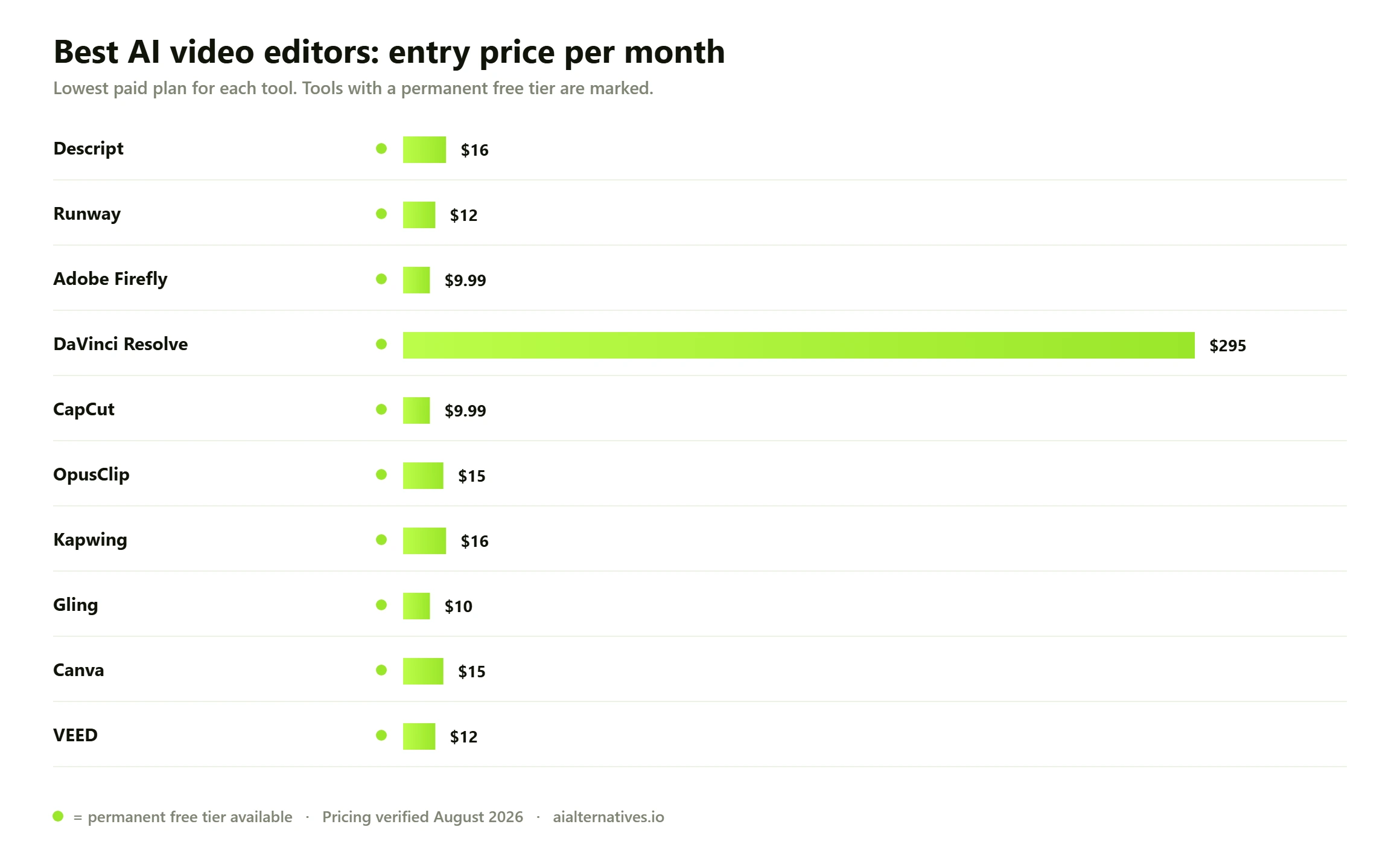
Entry price against free-tier generosity for the ten AI video editors on this shortlist. Figures taken from each vendor’s own pricing page in August 2026.
Start with the job, not the tool
AI video editing tools are not competing with each other so much as sitting in different parts of your day. Pick by the job in front of you and the shortlist collapses fast.
You are cutting someone talking
Podcasts, interviews, course modules, webinars. The work is removing dead air, tightening rambles and captioning. Descript and Gling are built precisely for this, and both will save you real hours. Descript is the better all-rounder because the edit and the finish live in the same place; Gling is faster if you only want a cleaned-up cut to take into Premiere or Resolve.
You are making short vertical video
CapCut and OpusClip own this. CapCut if you are shooting fresh and want templates, sounds and captions in one app. OpusClip if you already have a long recording and need it sliced into ten posts. Neither replaces judgement about what is actually interesting, and OpusClip in particular will confidently rank a dull moment as a hook.
You need a shot that does not exist
This is generative territory, and it is a different budget line. Runway and Adobe Firefly both do image-to-video, restyling and object removal well. If that is your main need rather than a garnish, our companion guide to the best AI tools by category and the dedicated image-to-video comparison will serve you better than a general editor round-up.
You want a real timeline and no subscription
DaVinci Resolve, every time. The free build is a complete professional editor, and the AI features you actually want sit in the one-off $295 Studio licence. For anyone editing more than occasionally, that maths beats a monthly plan inside eighteen months.
How we verified this Every price, credit allowance, watermark rule and export ceiling on this page was read from the vendor’s own pricing page, plans page or help documentation between 22 and 27 August 2026. Where a vendor renders pricing only through JavaScript that automated checks cannot read, or simply does not publish a figure, we say so in that tool’s entry rather than repeating a number from another blog. That applies to VEED and CapCut here. Vendors change prices without notice, so confirm on the vendor page before you enter a card. We have not conducted a hands-on editing trial of these ten tools, and nothing below is presented as our own bench test; capability claims are attributed to official documentation, and anything sourced from user communities is labelled as aggregated reports.
What a usable second of video actually costs
Credit pricing hides the real number. A plan advertising 625 credits sounds generous until you learn what one generation costs, and nobody advertises the fact that you will discard most of what you generate. Prompts get misread, hands go strange, a face drifts between frames. Two or three attempts per keeper is normal, and for anything with a specific brief it is worse.
So here is the arithmetic, using only per-generation credit costs the vendors publish themselves. Google, to its credit, documents this openly in its Flow credits help page. The last column assumes one usable clip in three, which is optimistic rather than cynical.
Plan
Per month
Published credit cost
Raw seconds a month
Usable seconds at 1 in 3
Cost per usable second
Runway Standard
$12 billed annually, 625 credits
12 credits per 5s on Gen-4.5
260s
about 87s
about $0.14
Google AI Pro, Veo 3.1 Fast
$19.99, 1,000 Flow credits
20 credits per 8s clip
400s
about 133s
about $0.15
Google AI Pro, Veo 3.1 Quality
$19.99, 1,000 Flow credits
100 credits per 8s clip
80s
about 27s
about $0.74
Pika Standard
$28, 700 credits
Not published per generation
Not calculable
Not calculable
Not calculable
What the credit maths really costs Three things fall out of that table. First, the highest-quality model is roughly five times the cost per second of the fast one on the same plan and the same subscription fee, so reaching for maximum quality on every draft is the single most expensive habit you can form. Second, Google states that unused monthly Flow credits do not roll over, and that free credits are forfeited the moment you upgrade, so an unused month is money gone. Third, any vendor that will not publish a per-generation credit cost has made your budget unforecastable by design. Treat that as a pricing decision, not an oversight.
Watermarks and export ceilings, tier by tier
The free tier is where marketing and reality part company. Some of these are genuinely usable for real work. Others exist to show you what you cannot have.
Tool
Free allowance
Watermark on free exports
Free export ceiling
DaVinci Resolve
The full editor, unlimited
No
3840×2160 at 60fps, 8-bit
Descript
60 minutes of media a month, 100 one-off AI credits
Yes
720p
Canva
200 standard or 20 premium AI uses
Not on standard exports
1080p
CapCut
Broad free editor, AI features restricted
On most AI output
1080p
OpusClip
60 credits a month, exports expire after three days
Yes
1080p
Gling
One hour of media a month
Yes
Unlimited exports
Kapwing
10 credits, 30 minutes of exports a month, four-minute cap
Yes
720p
Runway
125 credits granted once, no monthly refill
Runway lists watermark-free export as a paid benefit
Paid plans reach 1080p
VEED
Free tier available
Yes
Not published to automated checks
Two patterns are worth naming. The first is the one-off grant dressed as a free plan: Runway gives you 125 credits once, and Descript gives 100 AI credits once. Those are trials with a friendlier label. The second is the expiring export, which OpusClip applies at three days on the free tier. If you generate on a Friday and come back on Monday, it is gone.
Commercial use and where the training data came from
This is the question the big listicles skip, and it is the one that will cost you if you get it wrong. Two separate things matter: whether the licence lets you use the output commercially, and whether the model was trained on material the vendor had the right to use.
Adobe is the clearest. It states that its commercial Firefly models were trained on licensed Adobe Stock, openly licensed content and public domain content where copyright has expired, and that it does not train on subscribers’ personal files. Adobe also says outputs from features not carrying a beta label can be used in commercial projects. Whether or not Firefly wins on raw quality, that is the answer a cautious client or in-house counsel wants to hear.
Most other vendors permit commercial use on paid plans and are far vaguer about provenance. Several permit it on free tiers too, but with the watermark left in, which is commercial use in theory only. If your output will carry a brand, read the licence rather than the landing page, and keep a note of which model produced which asset. If provenance is a hard requirement, the same reasoning applies to stills, and our Photoshop alternatives and Midjourney alternatives pages cover the equivalent trade-offs.
What AI editing still will not do for you
Aggregated across community threads on Reddit and Quora, the complaints about AI video editing are remarkably consistent, and they are not about quality. They are about control.
Structure. Auto-clipping tools find moments; they do not find arguments. Every tool here will happily cut a coherent explanation in half because the pause looked long.
Taste. Virality scores are a guess. Treat the ranking as a shortlist to review, never as a running order.
Precision. Frame-accurate trims, matched cuts and audio sync still need a human on a timeline. Text-based editing is fast, not exact.
Consistency across clips. Generative shots drift. Faces, lighting and wardrobe change between generations, and no amount of prompting fully fixes it.
Long-form. Nearly every generative model on the market caps a single clip at five to ten seconds. Anything longer is assembly, and assembly is editing.
What to check before you commit Run this list against the pricing page before you subscribe. Does the free allowance refill monthly, or is it a one-off grant? Do unused credits roll over? What is the published credit cost of a single generation at the quality you will actually use? What resolution does your tier export, and is a watermark applied? Do exports expire? Is commercial use permitted on the tier you are buying, not just on the top tier? Can you cancel monthly, or is the advertised price annual-only? Five of the ten tools here quote their headline figure on annual billing, so the monthly price is higher than the number you first see.
FAQ
Questions people actually ask
What is the best AI video editing software right now?
For most people, Descript. It handles the job most of us actually have, which is cutting footage of someone talking, and it does it by letting you edit a transcript instead of a timeline. If you want a full professional editor without a subscription, DaVinci Resolve is free and the AI tools live in a one-off $295 Studio licence. If you need shots generated rather than cut, Runway is the stronger pick.
Can AI really edit videos on its own?
It can do the mechanical parts on its own, and it does them well: removing silences and filler words, generating captions, reframing horizontal footage to vertical, cleaning up audio, masking objects. What it cannot do is decide what your video is about. Every tool here needs you to review the cut. Treat AI editing as a very fast first pass, not a finished edit.
Can ChatGPT edit videos for you?
No. ChatGPT can write scripts, suggest structure, draft titles and descriptions and help you plan a shoot, but it does not edit video files. OpenAI’s video product, Sora, was discontinued: the web and app experiences ended on 26 April 2026 and the API is scheduled to shut down on 24 September 2026, per OpenAI’s own support notice. If you had work stored there, export it before the final window closes.
Is there a genuinely free AI video editor with no watermark?
DaVinci Resolve, and it is not close. The free build is a complete editor that exports up to 3840×2160 at 60fps with nothing stamped on it. The catch is that the AI features, including Magic Mask and text-based editing, are in the paid Studio build. Every other free tier on this page either watermarks exports, caps you at 720p, or both.
How much should I expect to pay per month?
Between $10 and $25 covers the entry tier of almost everything here, but read the billing terms. Half of these vendors quote their headline price on annual billing, so paying monthly costs meaningfully more. If you edit regularly, DaVinci Resolve Studio at $295 once is cheaper than any subscription within about eighteen months.
Why do my credits disappear so fast?
Because you are paying for attempts, not results. A published cost of 100 Flow credits for one eight-second Veo 3.1 Quality clip means a 1,000-credit monthly plan buys ten generations, and if you discard two of every three you are left with under half a minute of usable footage. Drafting on a fast model and reserving the expensive one for the final render is the single biggest saving available.
Do unused credits roll over to next month?
Usually not. Google states plainly that unused monthly Flow credits do not carry over and that free credits are forfeited when you upgrade to a paid plan. Gling says unused upload hours do not pass between months. Assume no rollover unless the vendor explicitly promises it, and pick a tier sized to a quiet month rather than a busy one.
Can I use AI-edited video commercially?
On paid tiers, generally yes. On free tiers, often yes in the licence but not in practice, because the watermark is still there. The bigger question is training data provenance, which most vendors will not discuss. Adobe is the exception and says its commercial Firefly models were trained on licensed Adobe Stock, openly licensed and public domain content. If a client or legal team will review the work, that transparency is worth paying for.
Will an AI editor replace Premiere Pro or Final Cut?
Not for finishing work. AI tools are excellent at the first eighty per cent, particularly rough assembly, captions and cleanup, and poor at the last twenty, which is where frame-accurate trims, colour and sound design live. The common working pattern is to let Gling or Descript produce a rough cut and then export it into a traditional editor to finish.
Which AI video editor is best for YouTube specifically?
Gling if you record long and want silences, filler words and blown takes stripped automatically. Descript if you also want to write, caption and publish in the same place. Add OpusClip if you want the same recording chopped into shorts. Our YouTube tool alternatives page covers the surrounding workflow, and our comparisons pit individual pairs against each other.
Next step
Keep narrowing it down
Still weighing two options against each other? These pages go deeper on the individual tools and the switching decisions people ask about most.